Settings at a glance
MSOCK provides seven settings destinations.
| Tab | Purpose |
|---|---|
| Profile | View the signed-in member identity |
| Appearance | Choose the light or dark theme |
| Notifications | Choose which desktop events notify you |
| Sync status | Reserved placeholder; do not treat its displayed values as live health data |
| Prerequisites | Check required local tools |
| Workspace | View the active workspace context |
| Connections | Connect or disconnect member-owned integrations such as Jira and GitLab |
Choose an appearance
Use Settings → Appearance to choose the interface theme.
| Theme | Use it when |
|---|---|
| Light | You prefer a light application surface |
| Dark | You prefer a dark application surface or reduced brightness |
The current product applies this preference as an appearance choice. It does not expose separate Auto, GPU, or Compatibility rendering controls on this screen.
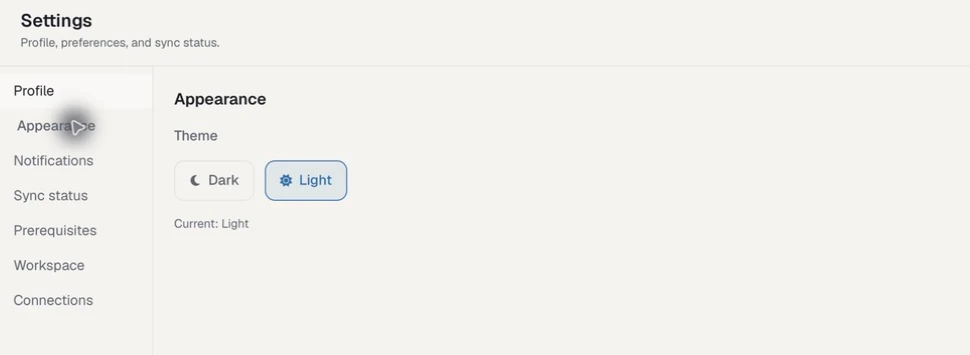
Appearance currently offers Dark and Light. The capture is cropped to exclude the signed-in member and workspace identity.
Configure notifications
Notification preferences are member-specific.
| Category | Default | Covers |
|---|---|---|
| Conflicts | On | Detected work or change conflicts |
| Drift alerts | On | Knowledge or workspace drift |
| Contributions | On | Knowledge contribution activity |
| Team | Off | Team activity |
| Publishing | On | A new SOCI or SOCK version becoming available |
Keep notifications enabled for decisions that require your action; reduce informational categories when they obscure gate or review requests.
Manage connections
Settings → Connections shows connections owned by the signed-in member. Jira and GitLab credentials belong to that member and are stored through the operating-system credential store. Disconnecting your integration does not remove another member's connection.
Updates and connectivity
The update control moves through Update available → Downloading… → Installing… → Update installed or Install failed, and offers Restart MSOCK when required. Preserve the displayed error and current version when asking for support.
| State | What to do |
|---|---|
| Offline | Restore network access; local work remains available where its required files are already on this machine |
| Taking too long | Wait for the current request to finish, then retry once; avoid starting duplicate actions |
| Cannot reach server | Check VPN, proxy, DNS, and enterprise network policy, then retry |
| Download couldn't be verified | Retry on a trusted, stable connection; do not bypass the verification failure |
| Couldn't save the update | Check available disk space and local write restrictions, then retry |
| Update server unavailable | Retry later after confirming general connectivity |
| Your network blocked the download | Check proxy, VPN, firewall, and enterprise download policy |
| Install failed | Keep the existing installation, restart MSOCK, and retry or use the current installer from the download page |